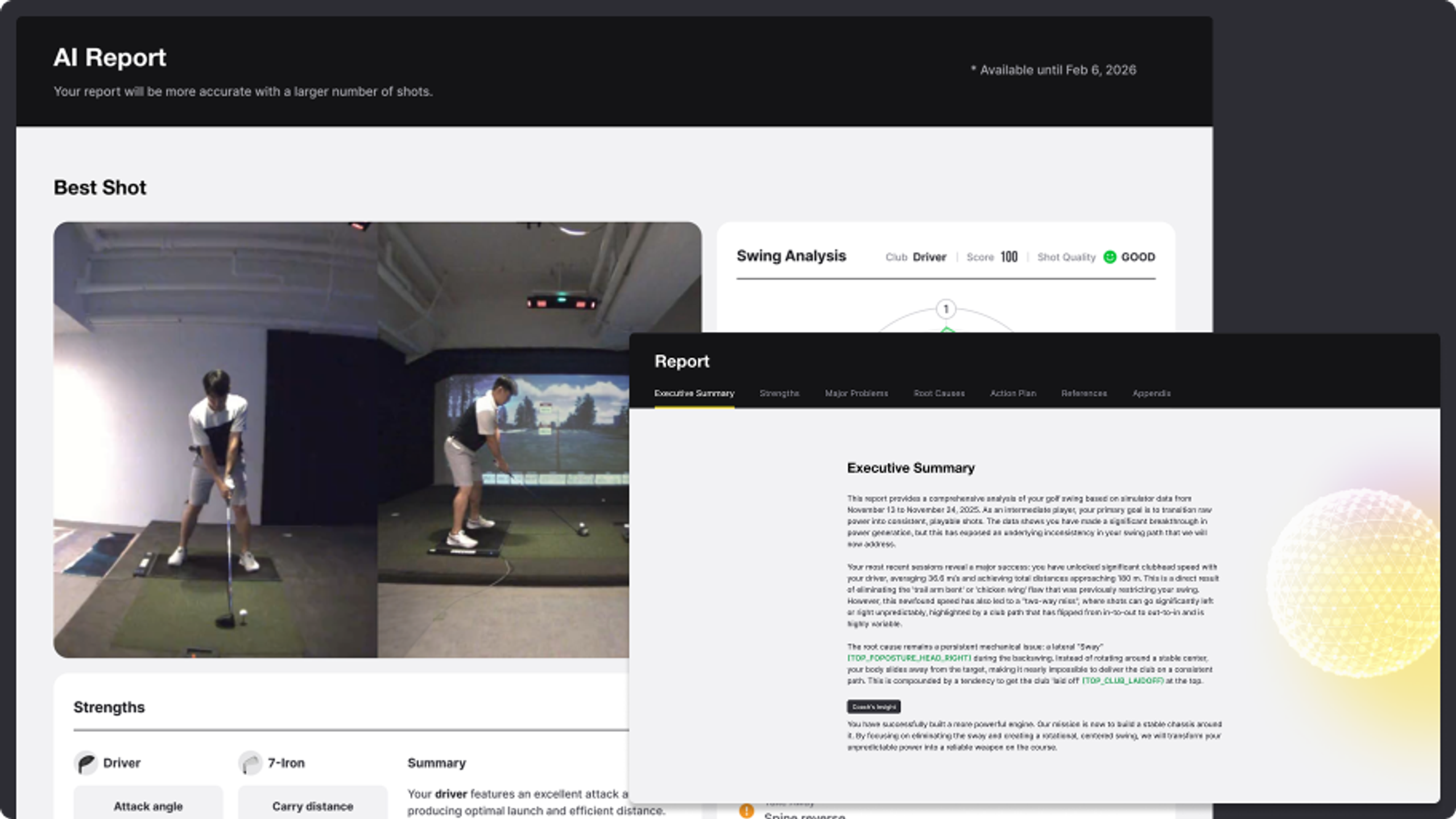
Uneekor's new AI Report analyzes your shot data and swing video to deliver personalized feedback on strengths, weaknesses, and what to work on.
Insights Beyond Data: Read Your Swing With the AI Analysis Report
The AI Insight feature that has been giving Uneekor users a deeper read on their practice sessions is upgrading. Meet AI Report, the next version of the same idea, rebuilt to go further. AI Report precisely analyzes complex shot data and swing video together, then writes a personalized report on what your swing is doing well, where it is breaking down, and what to focus on next.
AI Report is currently in beta. The version available today already generates in-depth, personalized analysis, and we are using feedback from real practice sessions to sharpen the experience before the official launch. One note worth flagging: AI reports generated during the beta period may expire and no longer be displayed once the official version goes live.
Report generation takes about 10 minutes. Once generated, a new report can only be created after 12 hours. However, if the report generation fails, this timeframe will be reset, and you can try creating it again. To get accurate full-swing analysis results using AI analysis, you must attach the club sticker, set up SwingOptix precisely, and select the actual club you will use when creating a session.
What's Inside an AI Report
Every AI Report is built around two layers of analysis:
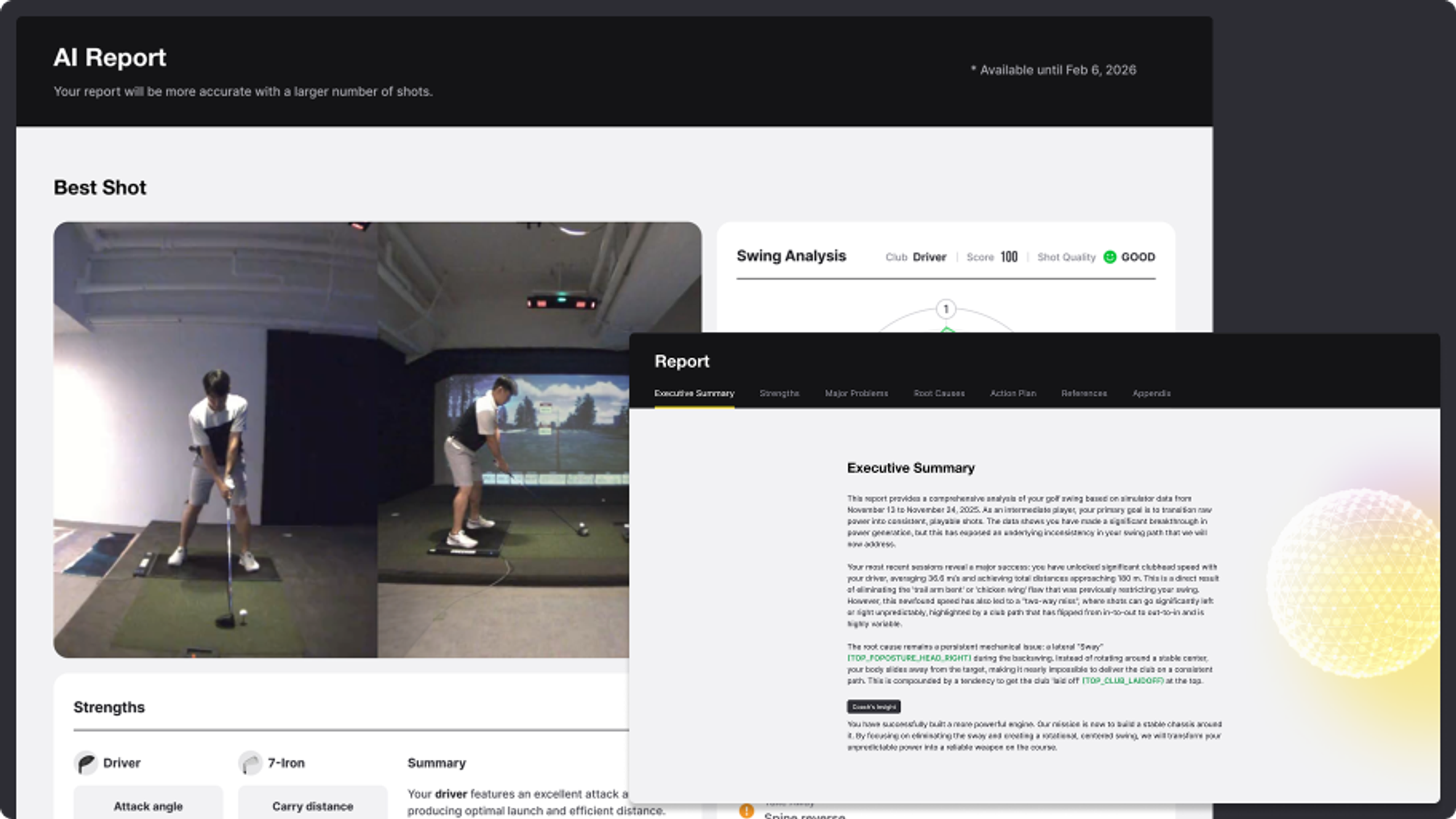
- Overview. The core summary of the report. Identify the key metrics of your best shots and the shots that need work, all at a glance.
- Report. AI analyzes your selected shot data to identify your strengths and weaknesses, then provides in-depth, personalized feedback on root causes and specific directions for improvement.
The report itself reads like a coaching write-up. It includes an executive summary up top, a clear breakdown of your strengths, the major problems showing up in your club and ball data, the root causes in your swing behind them, and an action plan you can take into your next session.
How to Generate Your AI Report
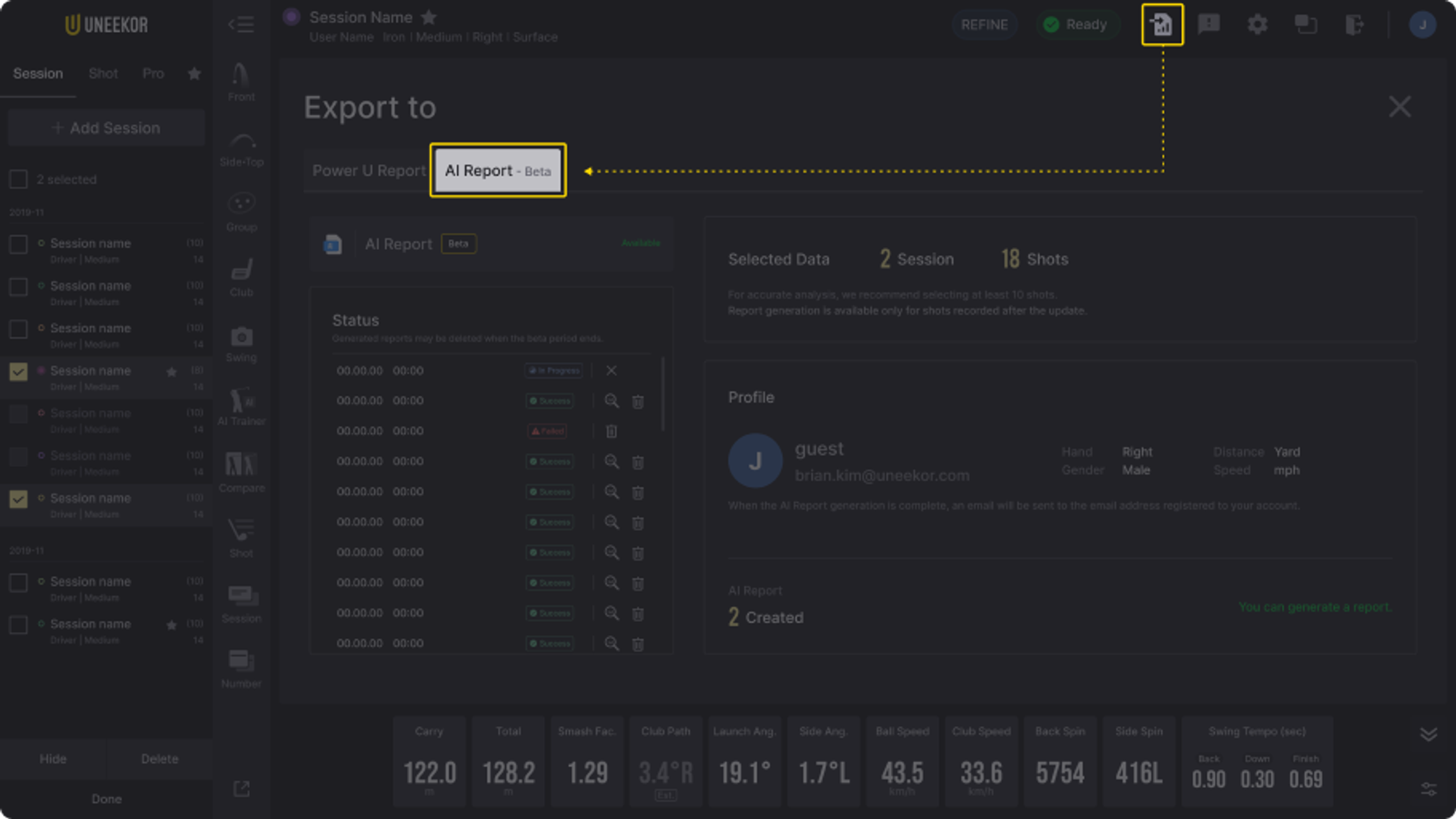
Step 1. Click Power U Report and move to the AI Report tab.
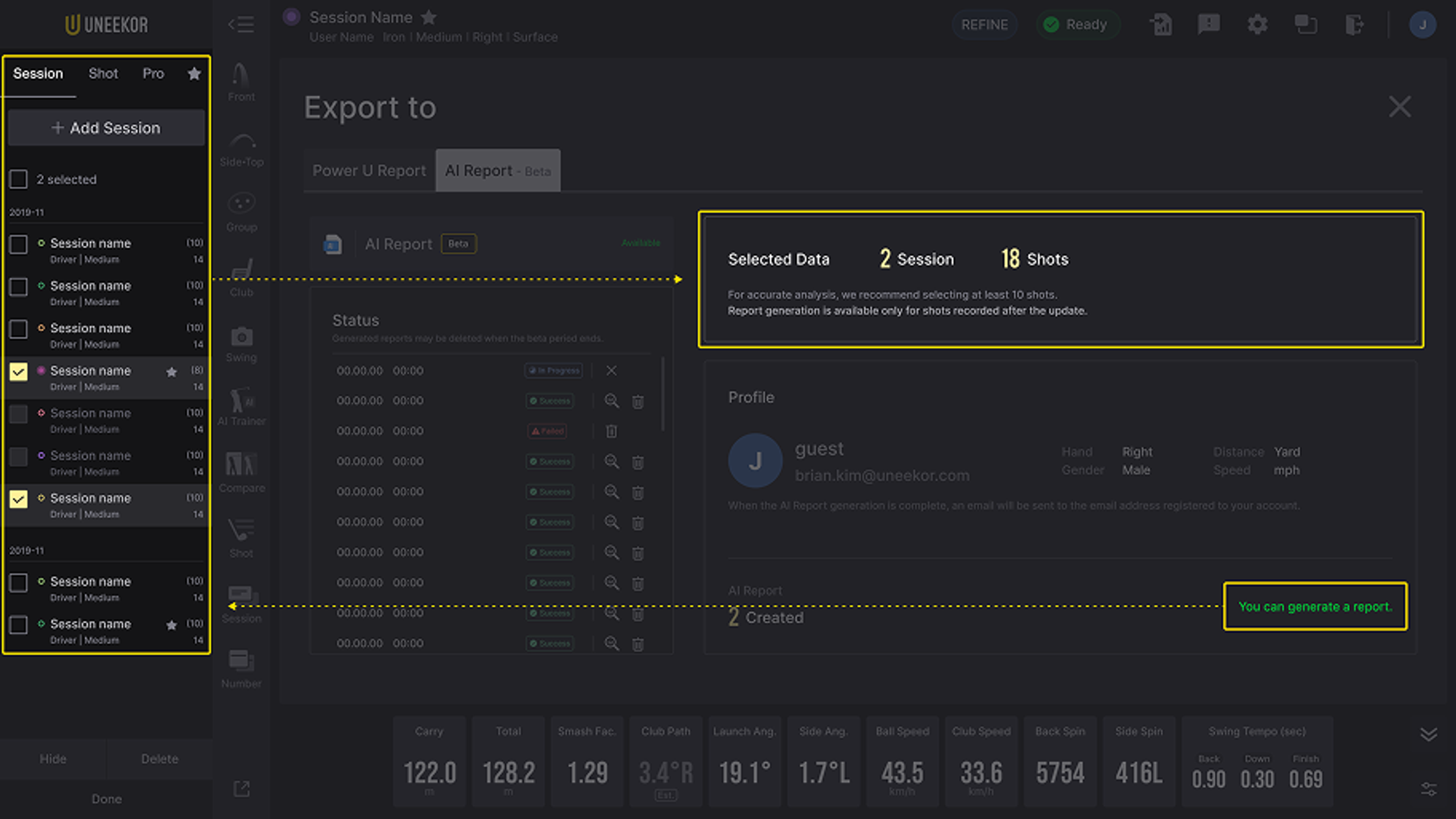
Step 2. Check that report generation is available, then select the session (or specific shots) you want to analyze. During the beta period, you can generate one report every 24 hours. For accurate analysis, we recommend a minimum of 10 shots, with a maximum of 130 shots (13 sessions) per report.
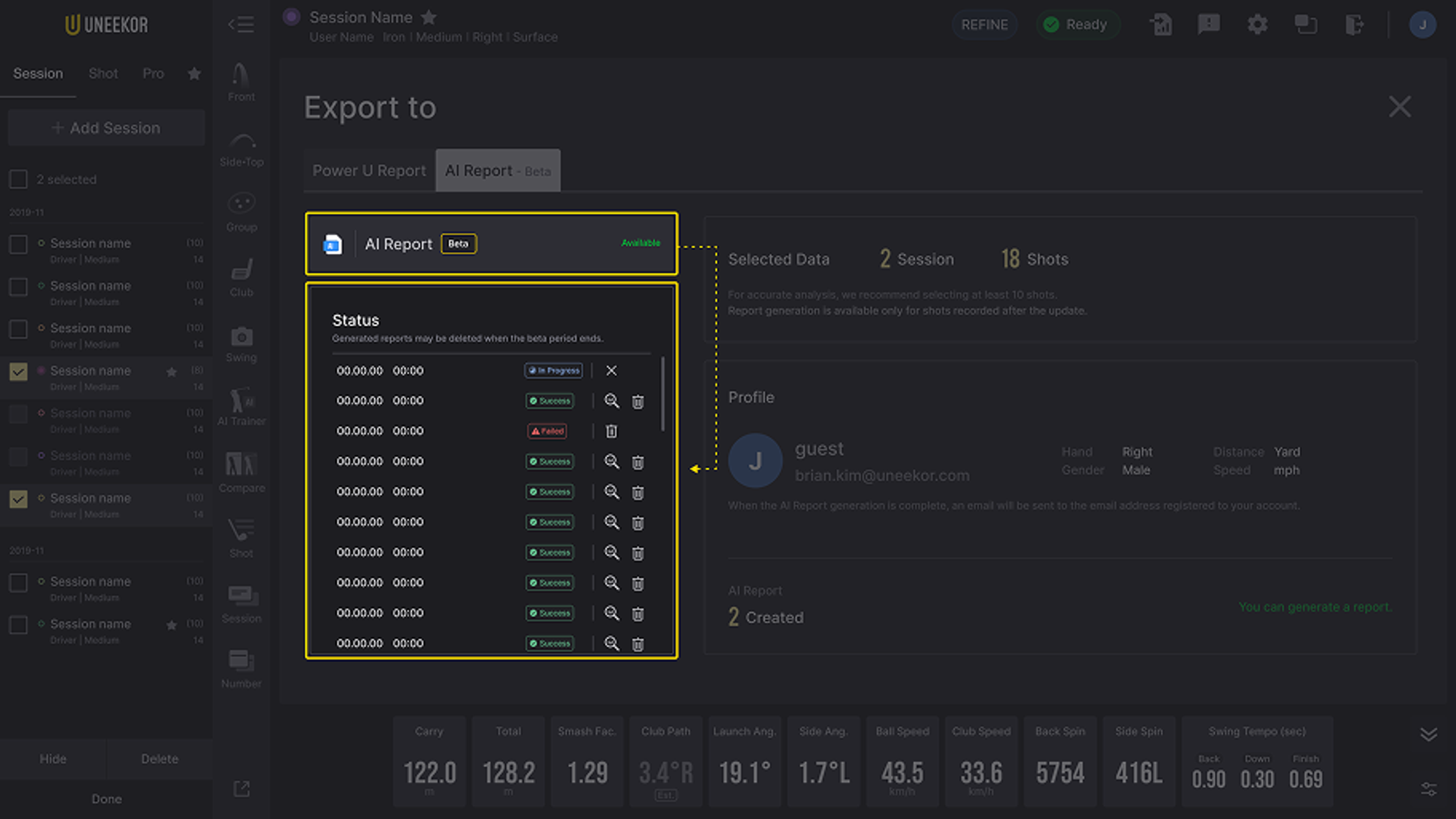
Step 3. Click the Create Report button and check the generation status.
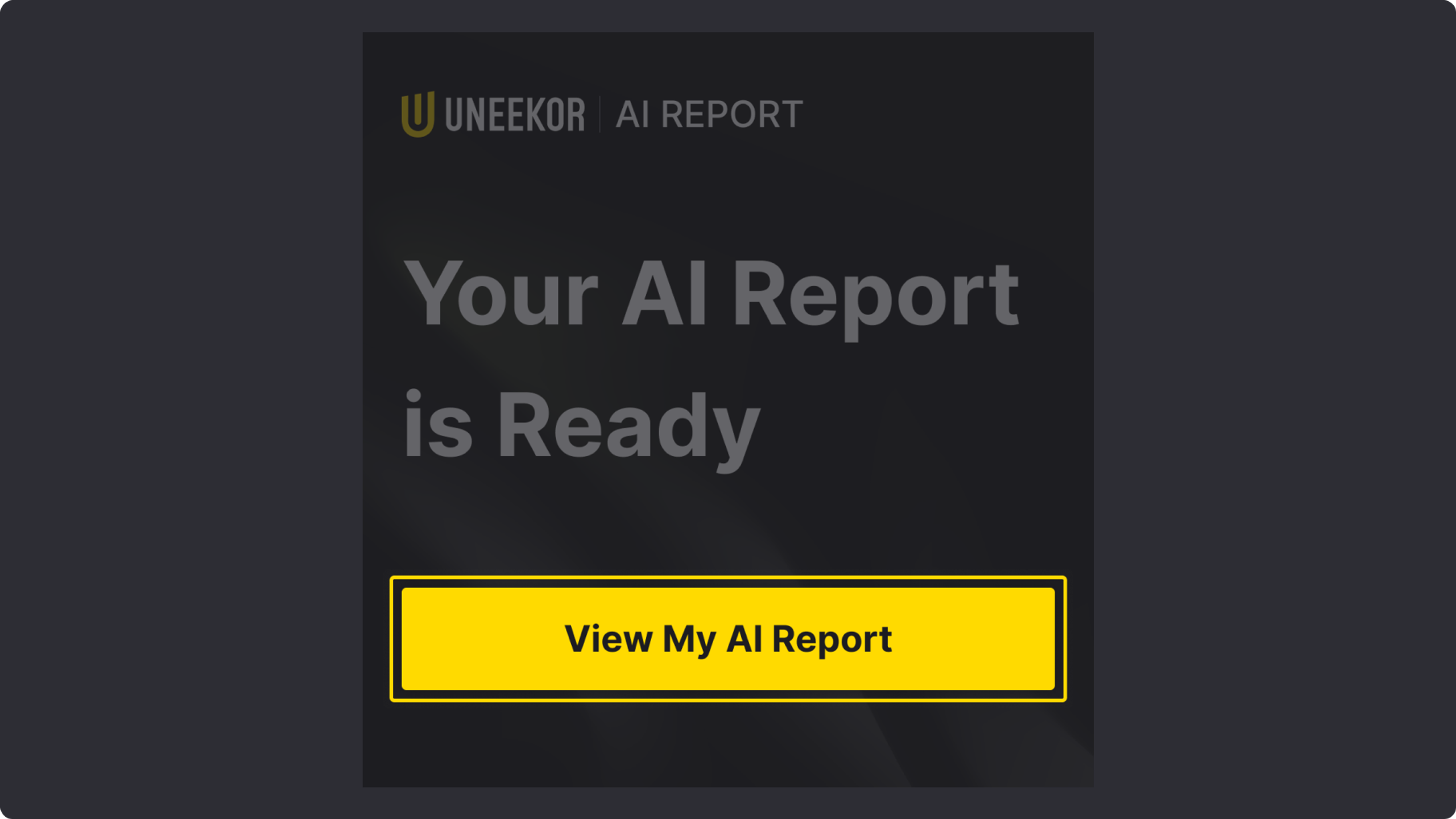
Step 4. Once generation is complete, an email is sent to the address registered to your Uneekor account. Click "View My AI Report" in the email to open the report. If the email does not arrive, please check your spam folder.
AI Report is the next step in turning practice data into coaching you can actually act on. More features, more personalization, and a clearer read on your swing, all in one place.
You can learn more about AI Trainer here.