How do I fix calibration issues?
If you're experiencing calibration issues, use the available device settings to recalibrate or realign the launch monitor. This can help restore proper performance and accuracy.
If you're experiencing calibration issues, use the available device settings to recalibrate or realign the launch monitor. This can help restore proper performance and accuracy.
Ensure the cameras are connected properly to compatible USB 3.0 ports and verify that your camera setup, focus, and lighting conditions are optimized. Following recommended connection and configuration best practices can help prevent performance issues and improve image quality.
If you experience lag or performance issues, configure your system to use the high-performance GPU for the affected software through your Windows graphics settings or NVIDIA Control Panel depending on your OS version. After applying the change, relaunch the program and verify that your PC meets the recommended system requirements if performance problems persist.
Restart the launch monitor by performing a power cycle: Turn the device off, wait briefly to allow it to fully shut down, and then power it back on following the recommended procedure for your specific launch monitor model.
Review the available settings in VIEW and adjust the sensitivity as needed. As calibration is done during manufacturing, contact Customer Experience with a video of the issue for further assistance.
Review your lighting, camera settings in VIEW, and hardware connections to ensure everything is configured properly. Making a few adjustments to your setup and verifying device connections can often improve performance and image quality.
Find out how to correct the orientation of Balance Optix® pressure bars and foot heat map readings.
Find guidance for resolving shot data accuracy issues and reporting misreads through VIEW when additional support is needed.
Learn how to troubleshoot common launch monitor connection issues by checking the Ethernet setup, antivirus software, network configuration, and Uneekor software installation.
Learn how to troubleshoot Balance Optix® connectivity issues by checking its power and network connections and reinstalling the device if necessary.
Learn how to troubleshoot Swing Optix® cameras when they are not capturing video by checking their connection, software settings, and installation.
This can occur if the cables are not securely connected, due to using the wrong type of USB ports on the PC, or connecting the cameras too close to each other on the PC.
This can occur if the cables have been damaged or are not securely installed; older units may also require a firmware update.
This can occur due to corrupt files, a miscalibration, or a change in the hitting environment.
If the ball is detected but the swing is not, we refer to this as a "no read", which can occur due to improper mounting (including being too high/low, or being angled incorrectly or backwards), a miscalibration, or a change in the hitting environment.
Follow the guide on the Uneekor website for both the file and instructions on how to update your firmware, applicable only to older units.
If your EYE XR is displaying frequent mishits or inaccurate shot data, the mounting angle may need to be adjusted.
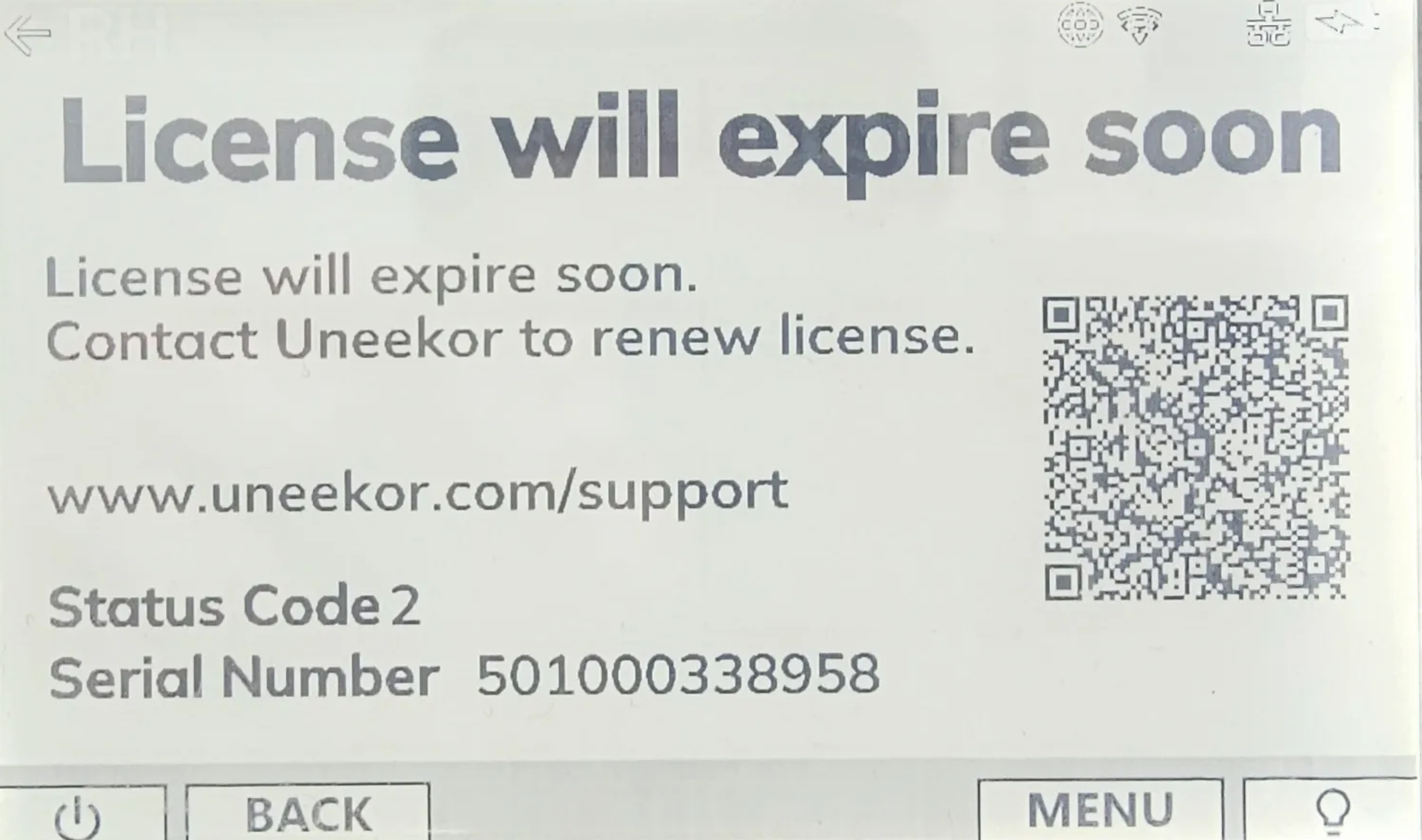
EYE MINI Status Code 2 means your device's license will expire soon. Connect your EYE MINI to the internet to update and refresh its license status.
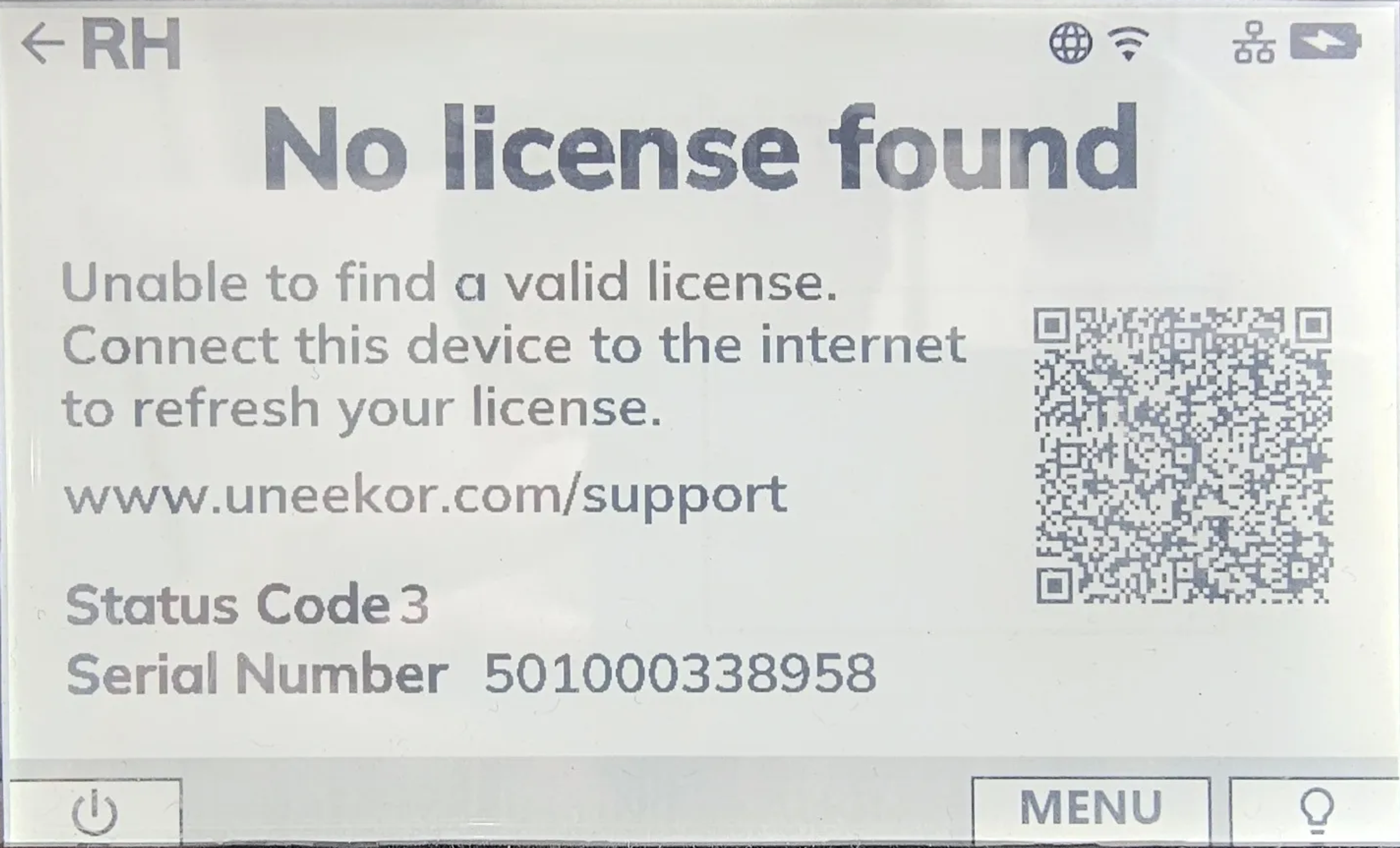
EYE MINI Status Code 3 means the launch monitor cannot find a valid license. Register the EYE MINI to your Uneekor account and connect the device to the internet to refresh its license.
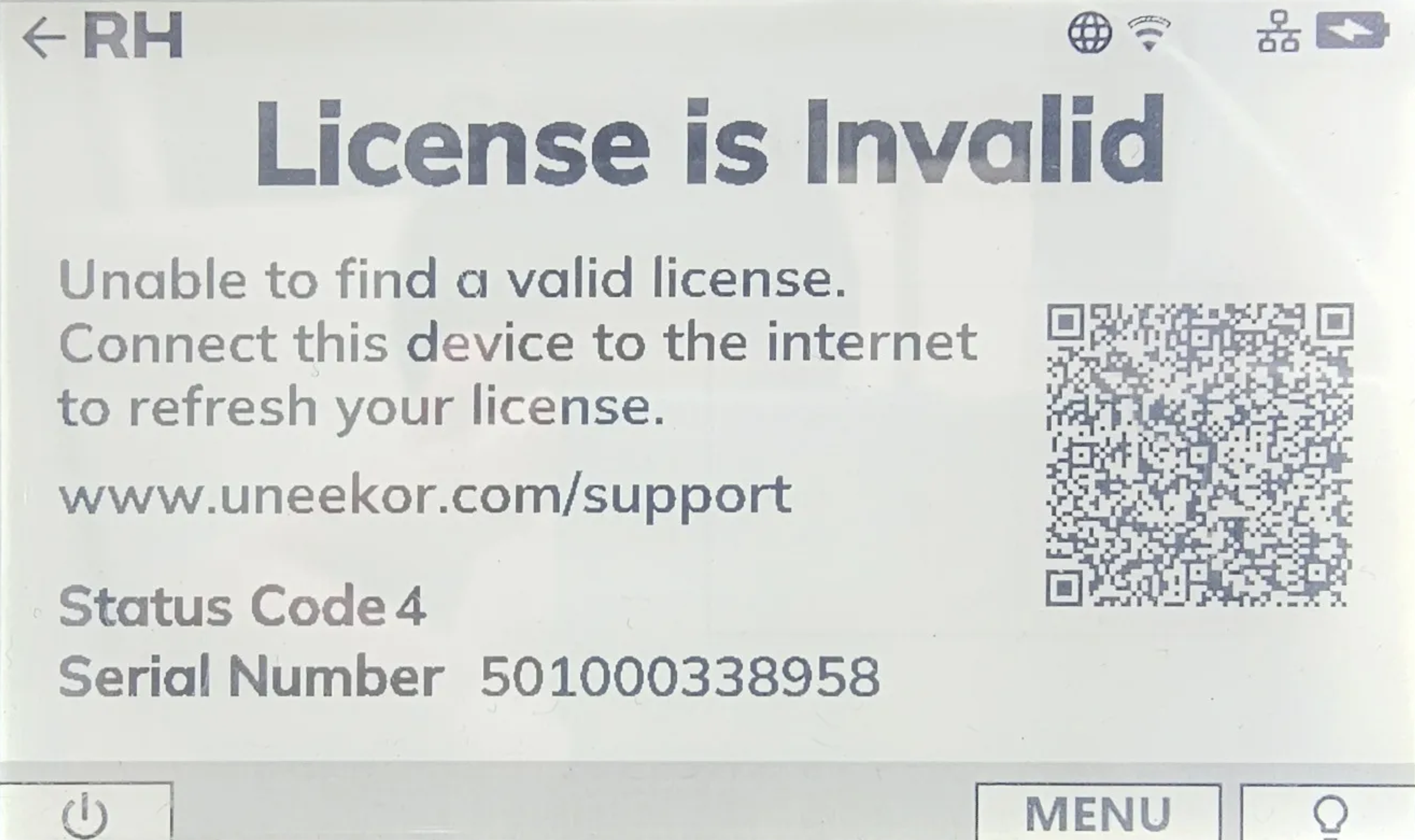
EYE MINI Status Code 4 indicates that the device cannot find a valid license. Confirm that your EYE MINI is registered to your Uneekor account and connected to the internet.
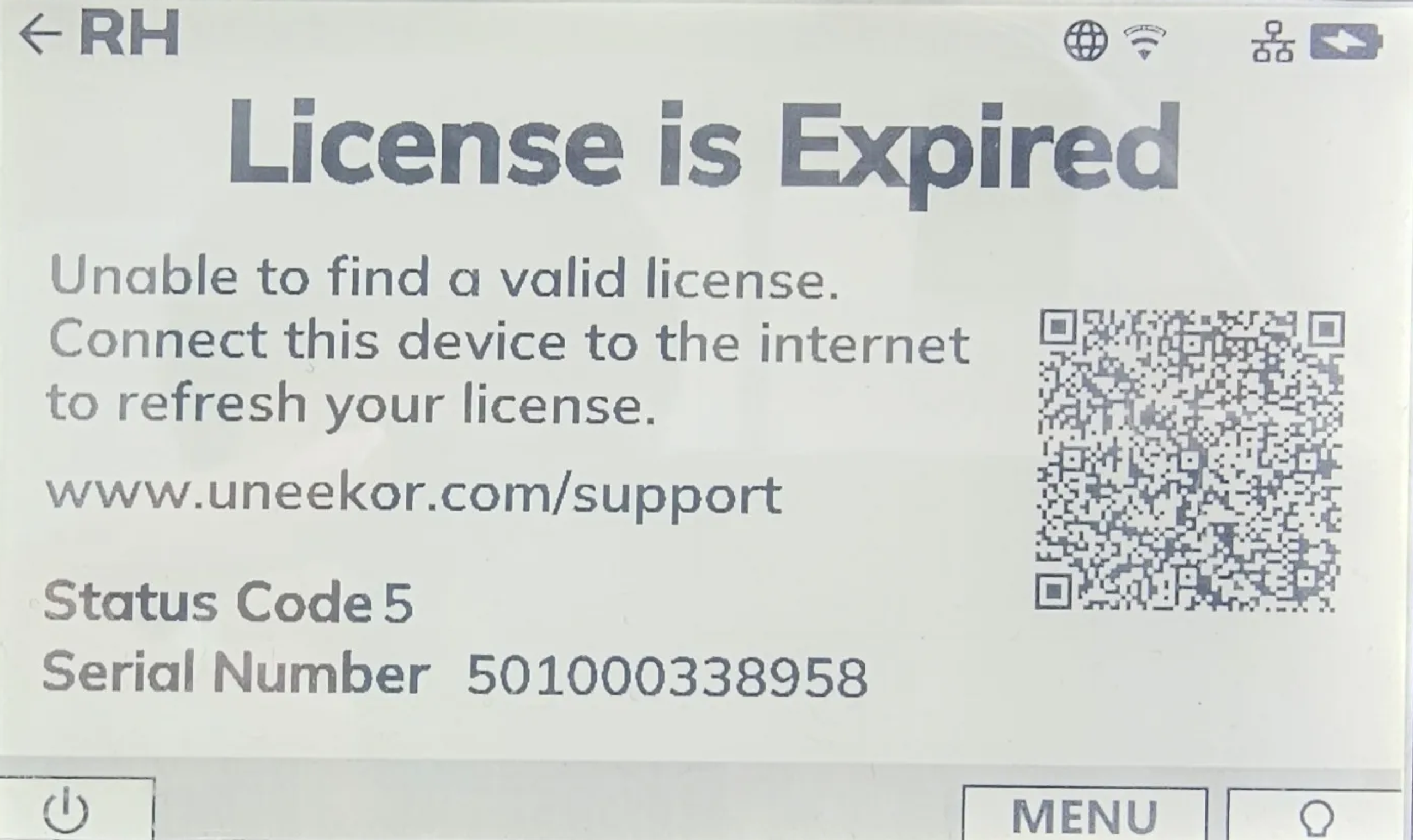
EYE MINI Status Code 5 means the device's license has expired. Connect your EYE MINI to the internet so it can refresh and update its license status.
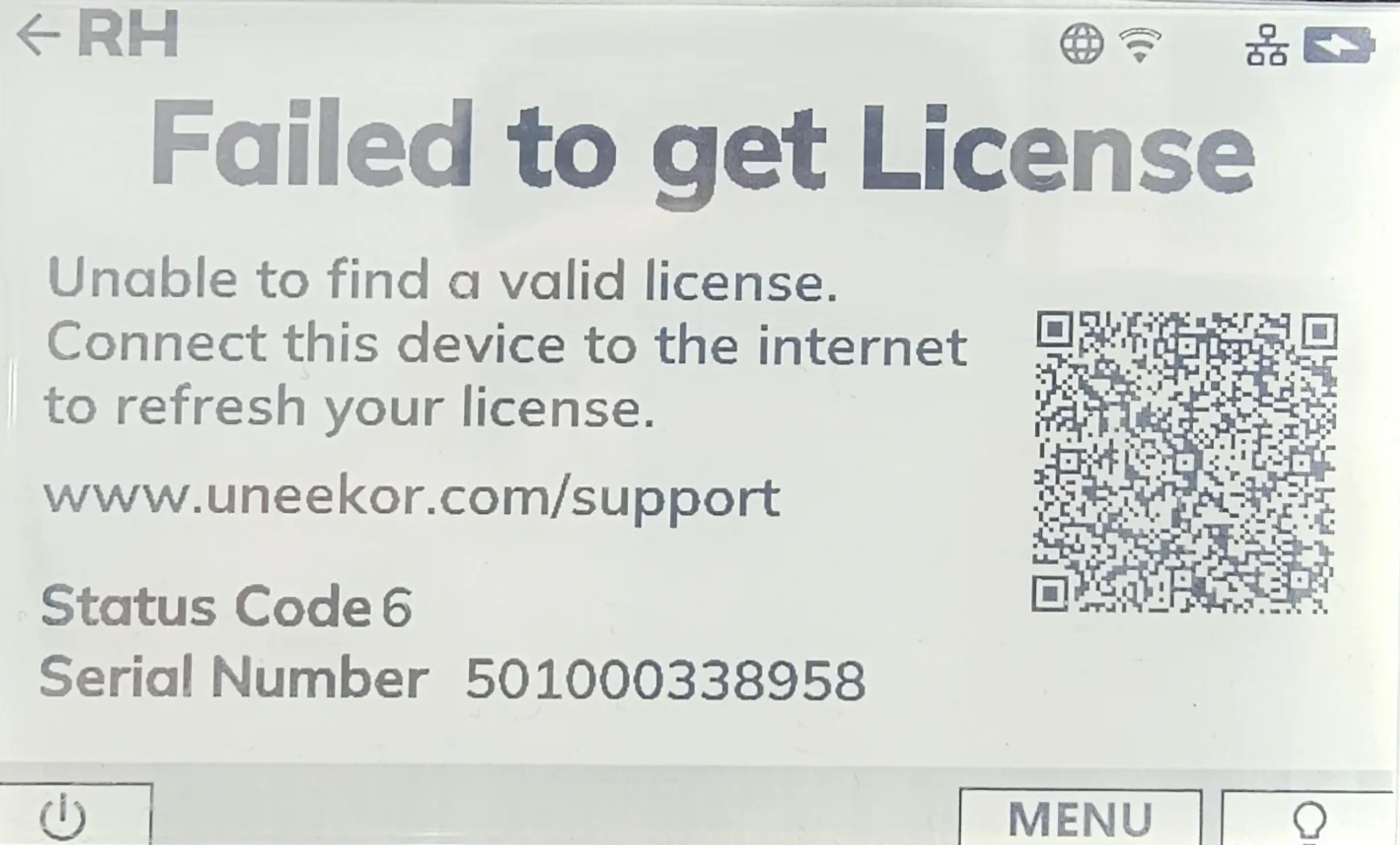
EYE MINI Status Code 6 indicates a communication error that prevents the device from retrieving a valid license. Check your internet connection and confirm that the EYE MINI's date and time are correct.
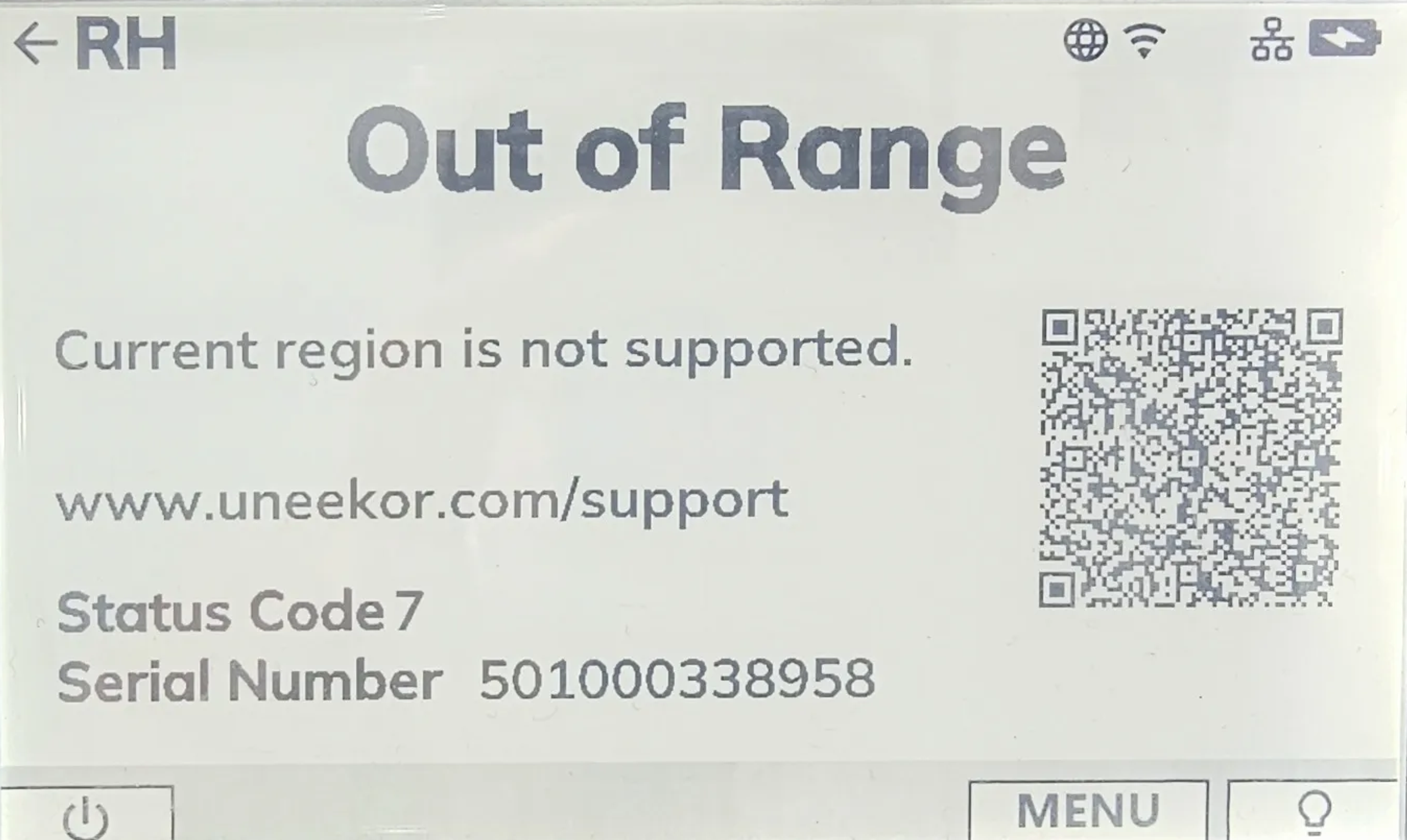
EYE MINI Status Code 7 indicates that the device's current region is not supported. Connect your EYE MINI to the internet to update its license and region status.
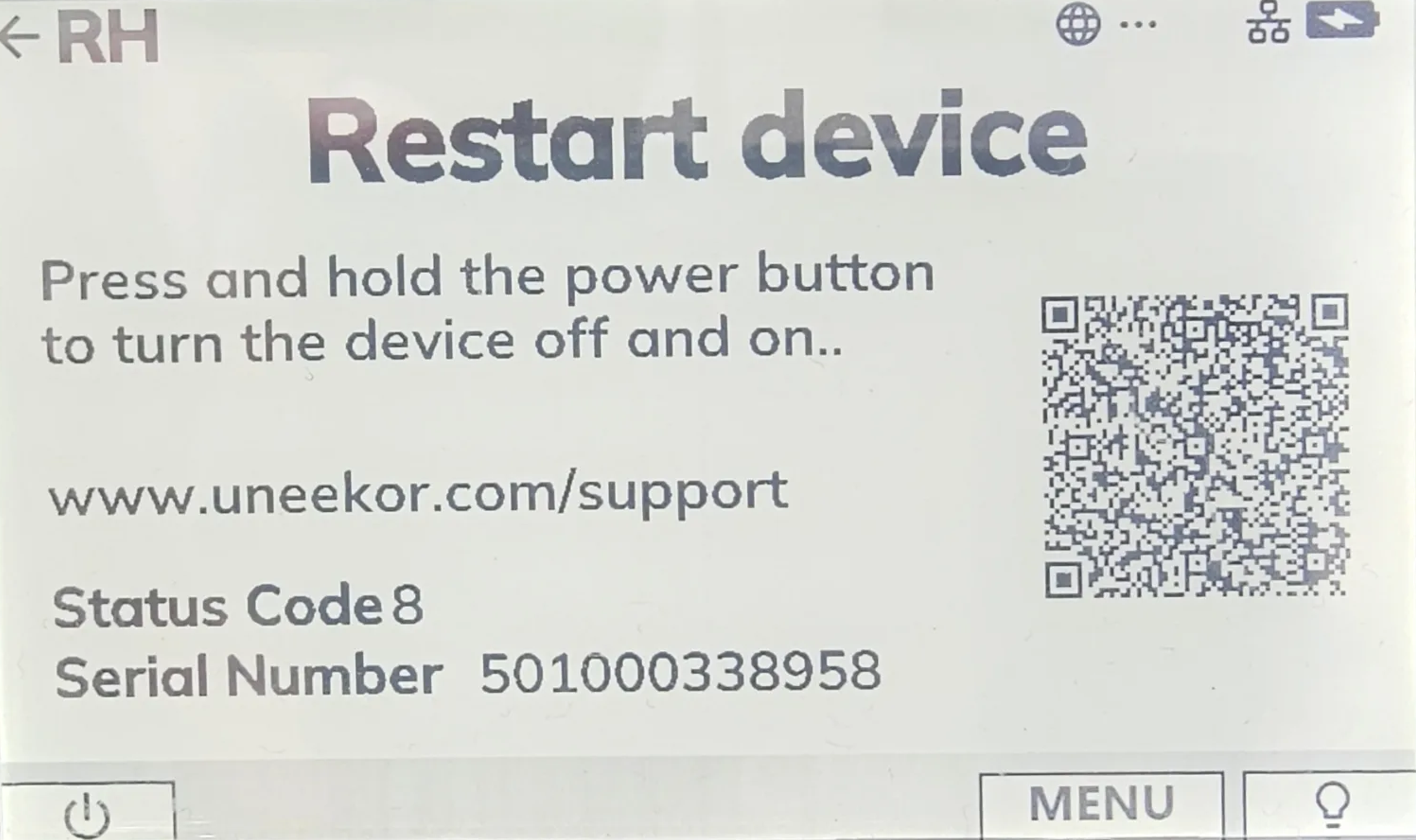
EYE MINI Status Code 8 means the device is blocked and needs to be restarted. Restart your EYE MINI using the power button to attempt to clear the issue.
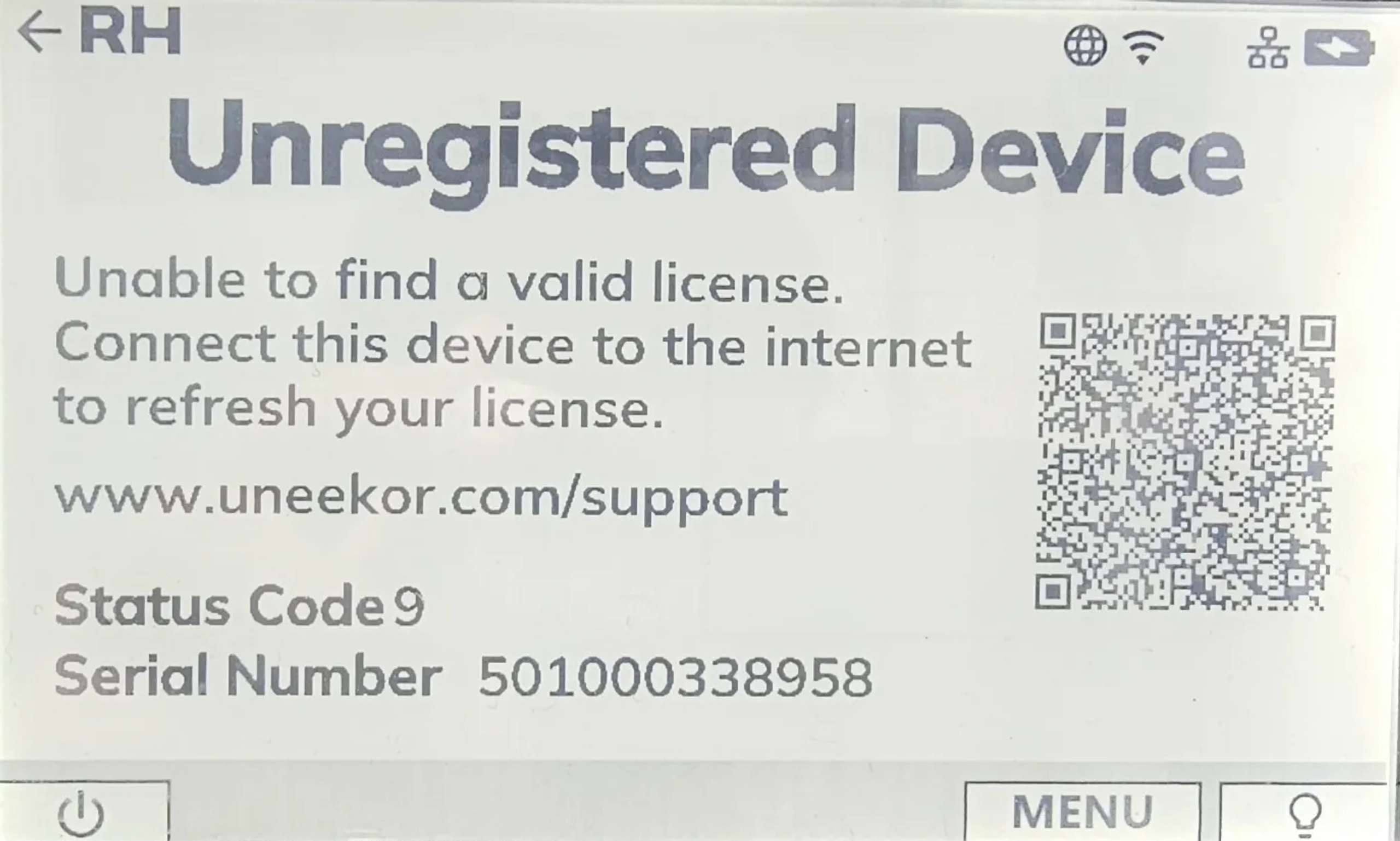
EYE MINI Status Code 9 means your launch monitor is not registered to a user account. Register the device to your Uneekor account and connect it to the internet to refresh its license.
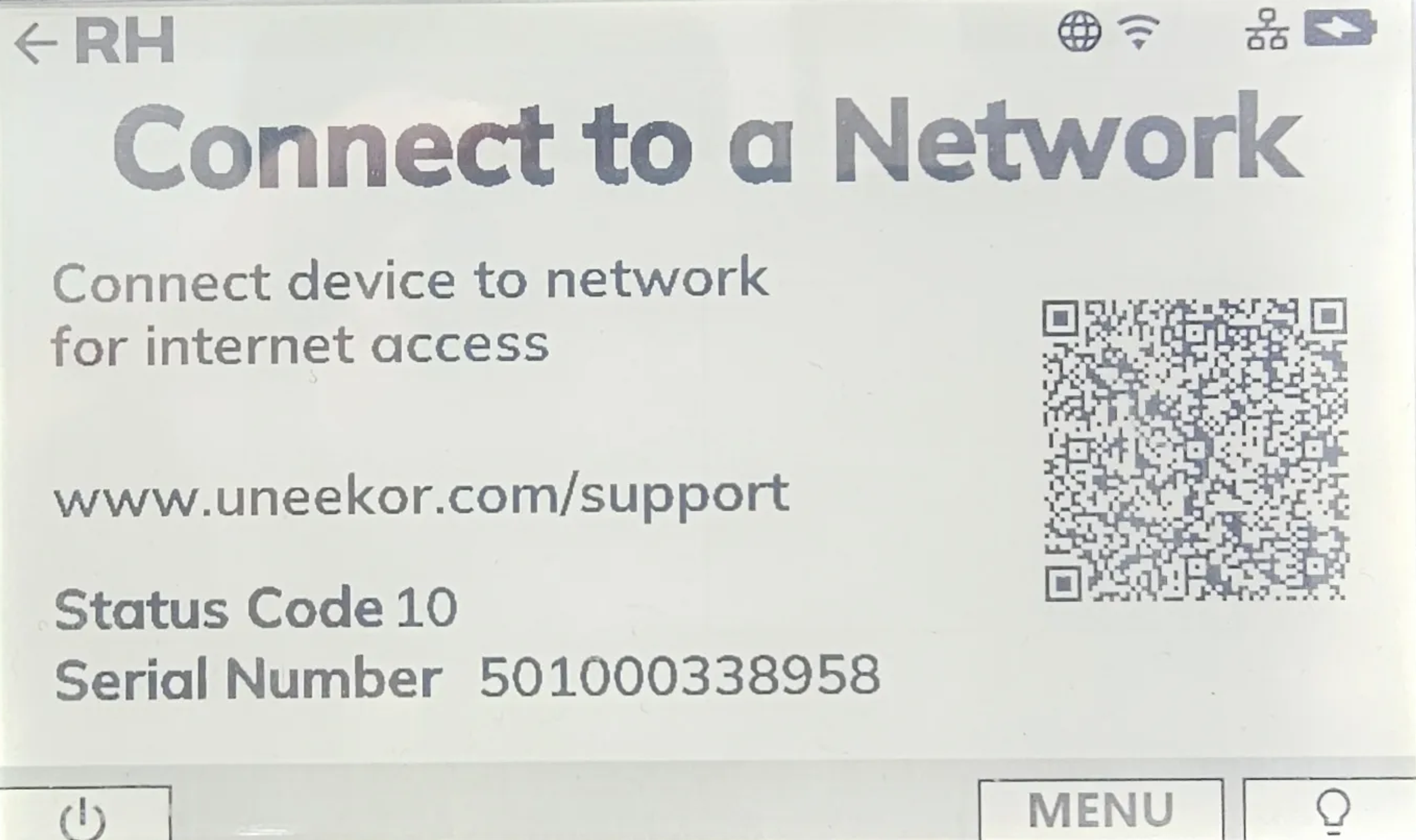
EYE MINI Status Code 10 means the device does not have the internet connection required to access Uneekor's licensing services. Connect your EYE MINI to a network to resolve the issue.
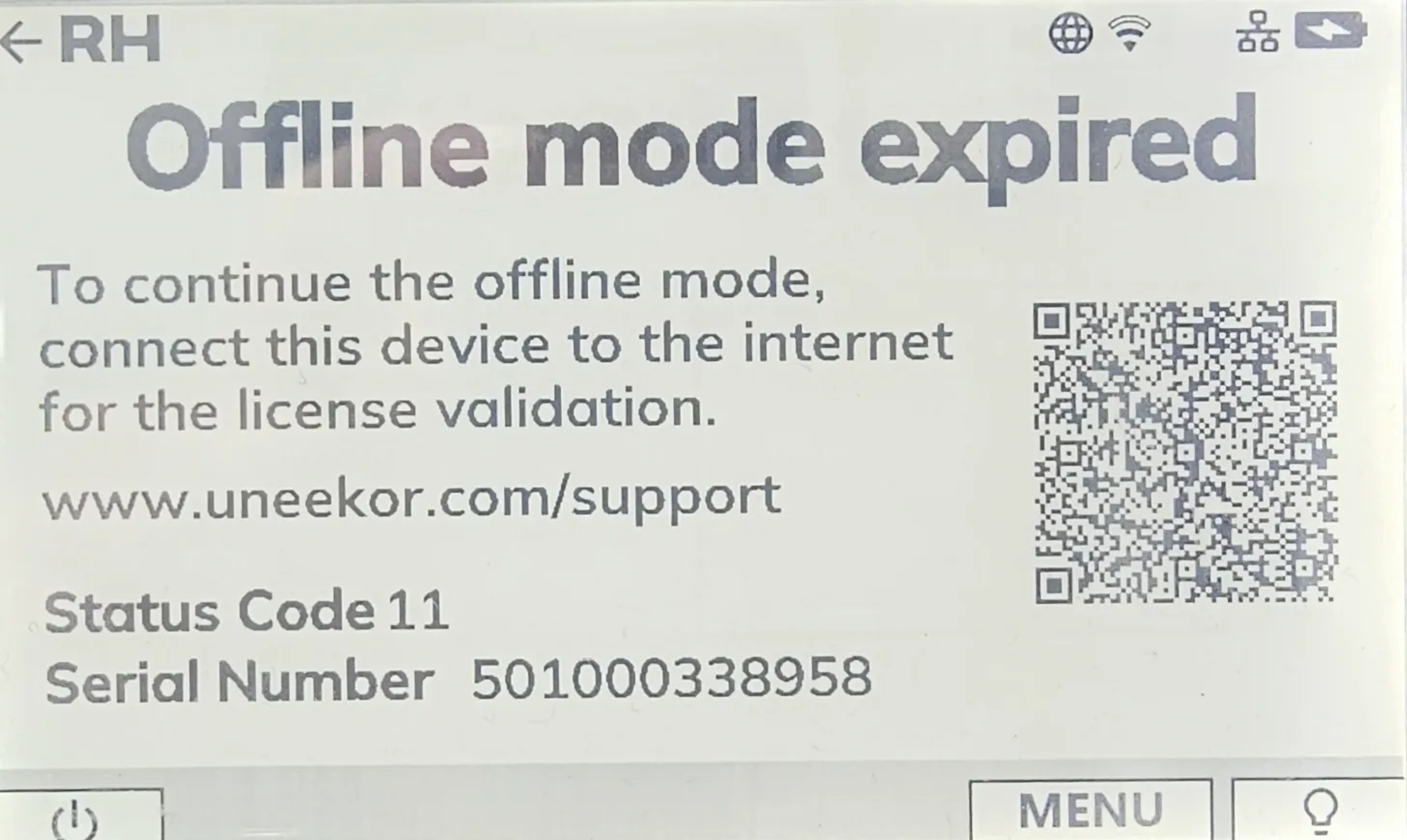
EYE MINI Status Code 11 means the device's offline mode has expired. Connect your EYE MINI to the internet so its license can be validated and offline access can be extended.
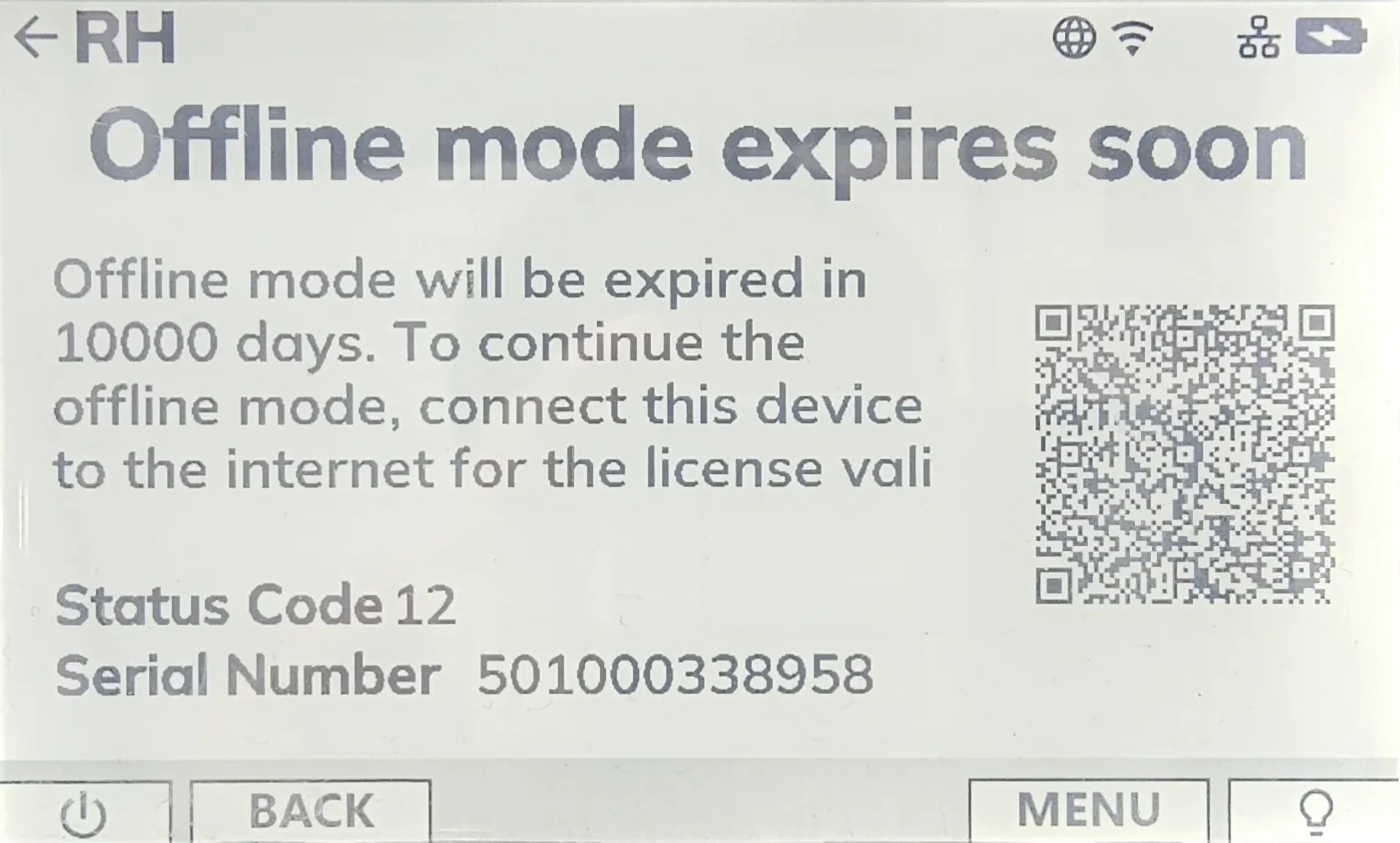
EYE MINI Status Code 12 means the device's offline mode will expire soon. Connect your EYE MINI to the internet before the offline period expires to validate the license and extend offline access.
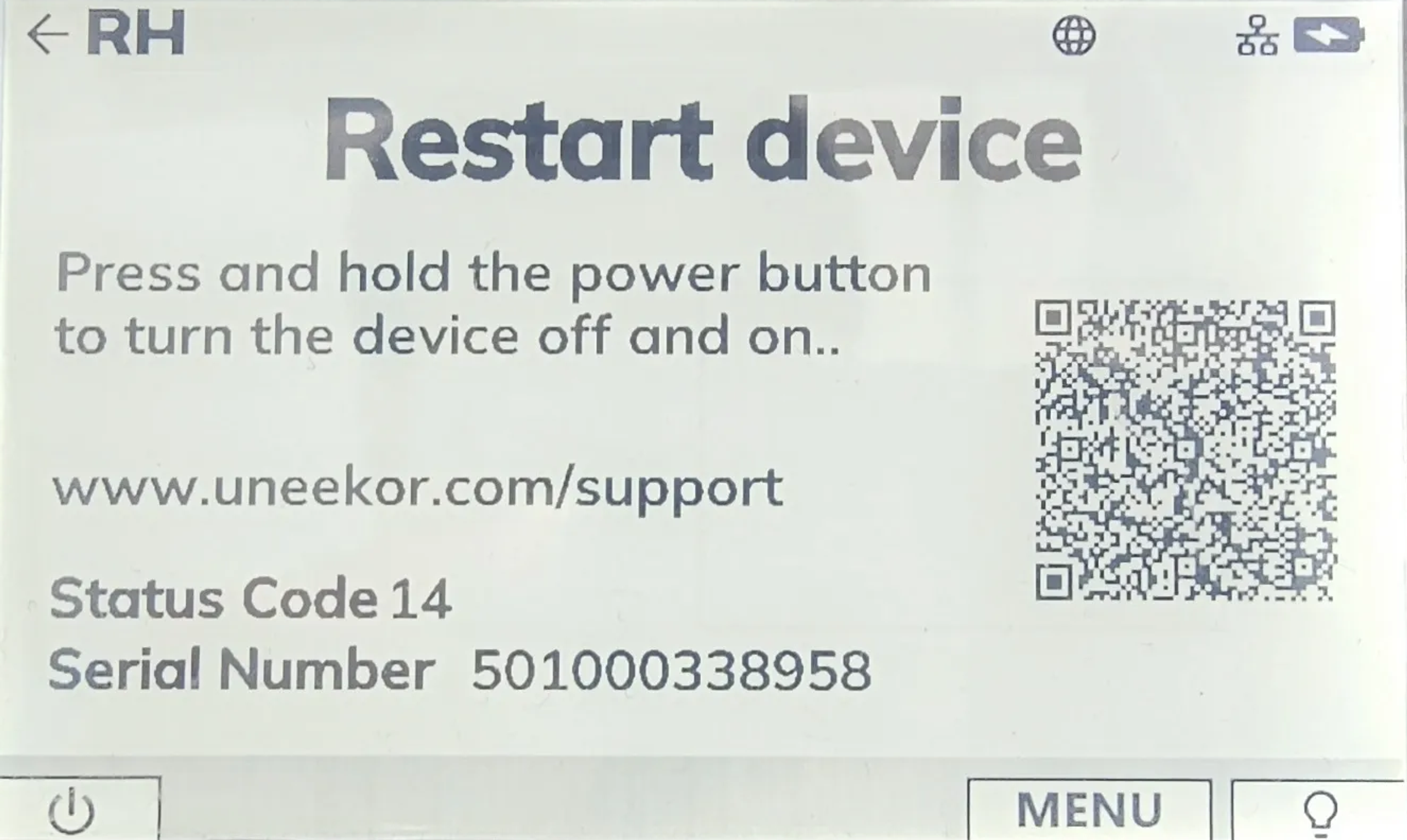
EYE MINI Status Codes 14 through 29 indicate an invalid system time. Check the date and time in the EYE MINI Status menu and connect the launch monitor to the internet.
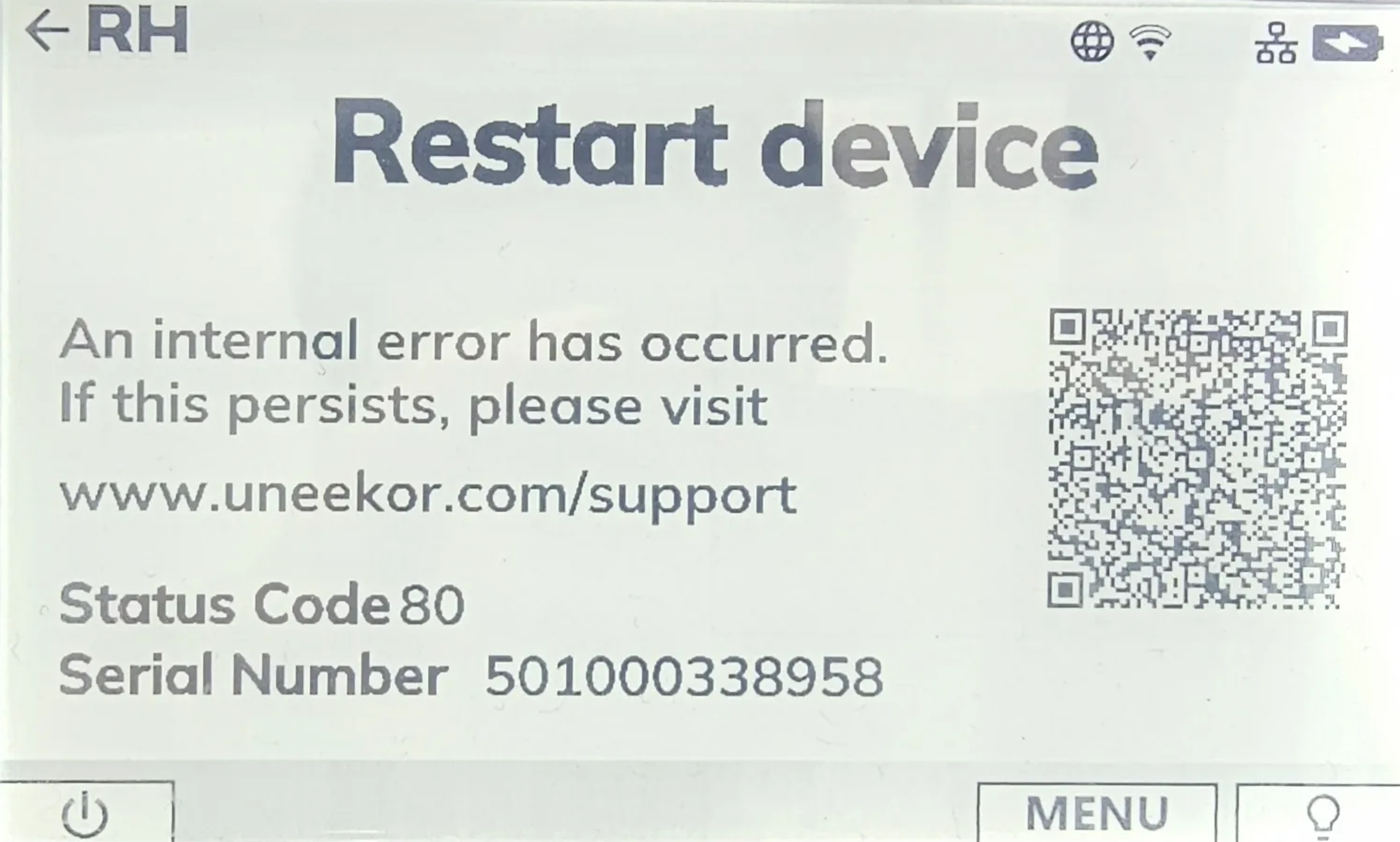
EYE MINI Status Code 80 indicates an internal FPGA/CAM communication error associated with the ETH1 link. Restart the EYE MINI and contact Uneekor Support if the issue persists.
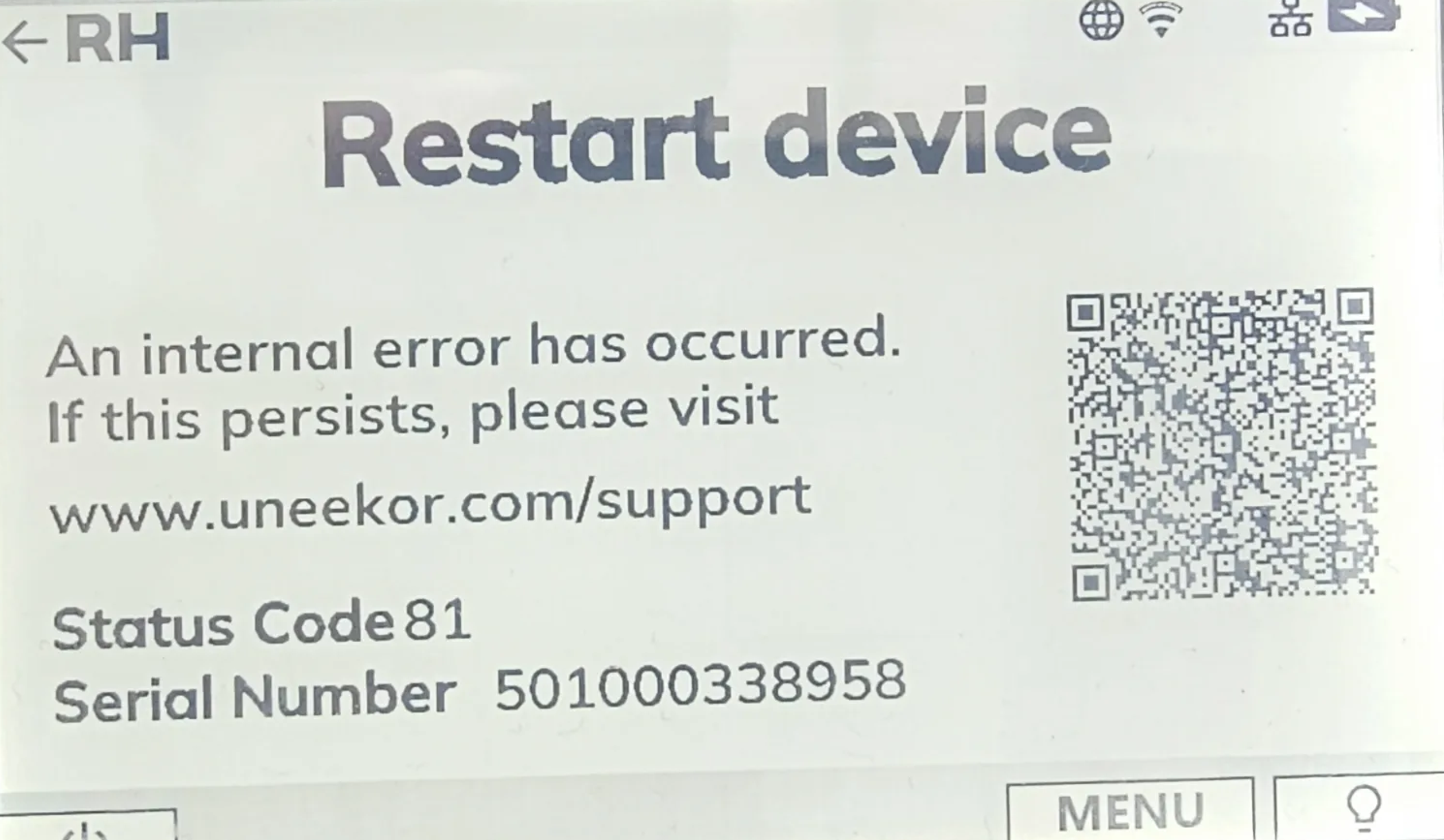
EYE MINI Status Code 81 indicates an internal FPGA/CAM error associated with the camera or IR system. Restart your EYE MINI and contact Uneekor Support if the issue continues.
EYE MINI Status Codes 82 through 98 indicate an internal hardware or miscellaneous device error. Restart your EYE MINI and contact Uneekor Support if the issue persists.
Can’t find what you’re looking for and need help from our experts? Reach out to us any time using phone or email.
Get help troubleshooting your Uneekor hardware, software, memberships, installations, account issues, and technical questions.
Mon - Fri 8:00am - 8:00pm EST Sat - Sun 8:00am - 5:00pm EST
Need help with an order? Contact us about shipping, order status, returns, exchanges, cancellations, warranties, or payment questions.
Mon - Fri 10:00am - 8:00pm EST